A.5 Create a Work Request (laptop)
Once you are logged in to MEMO:
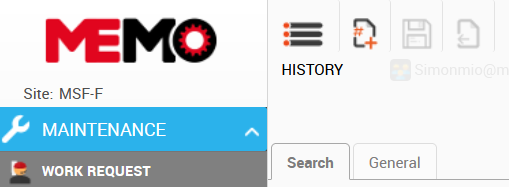
- Go to the left side of the screen under the module Maintenance and click WORK REQUEST
- Create a new Work Request by clicking on the
 icon at the top of your MEMO screen
- Fill the following mandatory information:
- Requester Name / Position
- Equipment Code: you can directly enter the equipment code OR select from the drop down menu or passing by the “tree view”.
- Problem description: Brief description of the fault on the equipment.
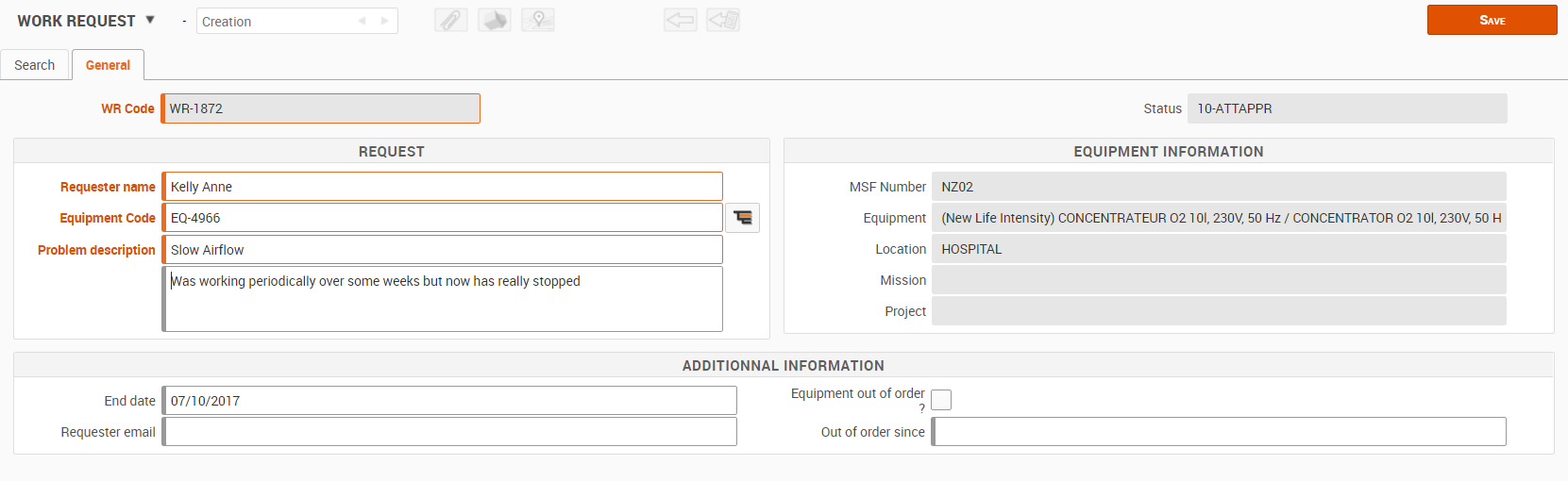
- Add other information such as your email and an ‘Out of order’ date if relevant.
- Click on SAVE
your Work Request is saved and sent to the Logistics Department in MEMO. This isn't notification by email.
Tips: Complete a detailed description of the problem: Since when? After what operation? Has it made noise? Warning signs? Action already taken? Out of service? Or working, but not effective.
Tips: To enter the equipment, you can also enter the serial number or the MSF number in the field; MEMO will automatically find the equipment code.
Note :All fields in orange are mandatory thus need to be filled out before saving.
On saving, if they are not filled out, a pop-up window in Orange will highlight errors. If filled out correctly, a pop-up window in GREEN will highlight Saved OK.
Follow up
- You can come back later to follow up your request : click on the bottom
 to open your WR : you will see if the one WO is open for this WR, the status of the WO (approved, done, close) and the report of the WO.
